What's New in 2.4.0
Fold branches and pick how many levels to show, built for deep hierarchies (5+ levels).
- Fold and unfold branches: every item with children has a small handle on its connector line. Fold a branch you are not working on and see how many items it hides. Works in Chart, Horizontal, Radial and List.
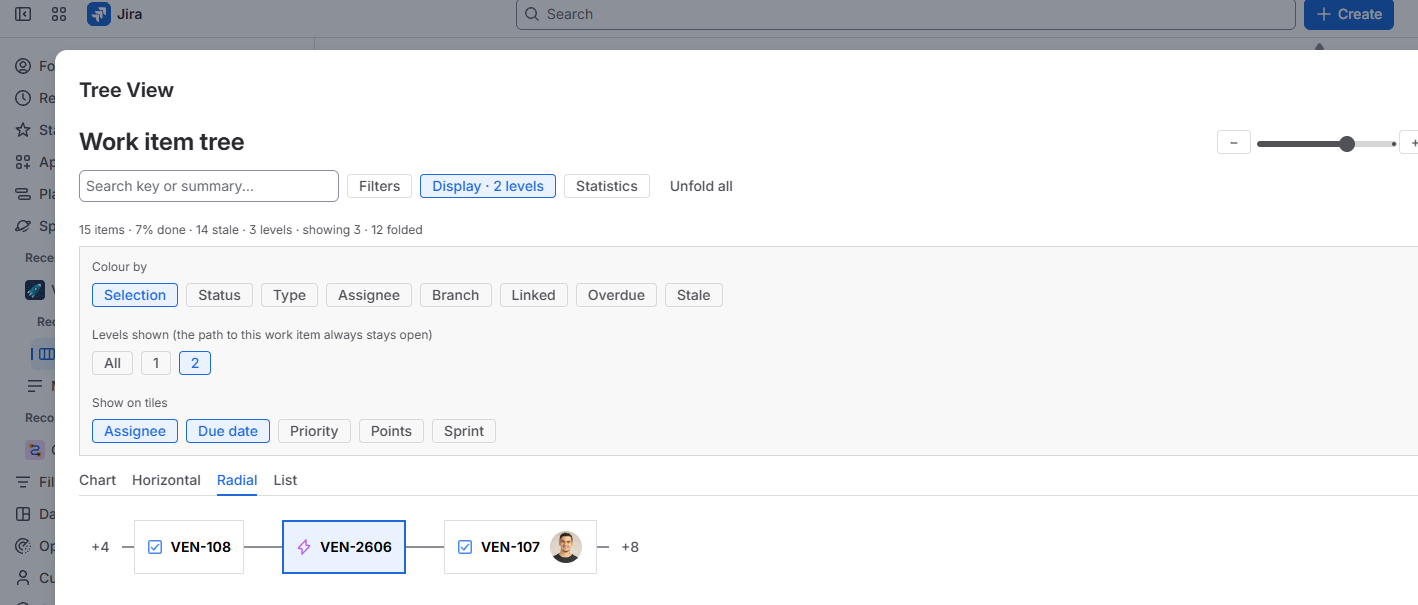
- Levels shown: show only the top 1, 2, 3… levels of a deep hierarchy. The path from the top down to the item you opened always stays open, and any folded branch can be opened one level at a time.
- Exports follow what you see: folded branches and level limits apply to JSON, CSV, SVG and PDF exports, like filters already did.
- Your item is always there: in very large hierarchies (over 500 items) the path from the top to the item you opened is now always included, however deep it sits.
- Clearer limits: Tree View shows up to 10 levels and 500 items, and now tells you which limit was reached.
- Faster on big trees: only the view you are looking at is drawn, so large trees load and react to zoom, filters and folding much faster.
- The summary line now shows how many levels the hierarchy has and how many items are folded.
Overview
Tree View for Jira shows the full hierarchy of the work item you are viewing — its ancestors, itself, and every sub-item — as an interactive tree, right from the issue view. Navigate complex project structures with ease and understand the complete context of any work item without leaving Jira.
Key Features
Full Hierarchy View
See the complete tree structure from the topmost ancestor down through all children and subtasks.
Four Layout Options
Chart (top-down org chart), Horizontal (left to right), Radial (mind map around the top item) and List (compact indented view).
Built for Deep Hierarchies
Fold branches and choose how many levels to show, from initiatives and themes down to sub-tasks.
Filters, Lenses and Statistics
Search, filter by status or work type, colour the tree by status, type, assignee or branch, and see progress rollups.
Interactive Navigation
Click any work item in the tree to open it in a new tab. Hover to see full titles in tooltips.
Enterprise Security
Built strictly on Atlassian Forge. Eligible for the Runs on Atlassian program with zero external data egress.
How It Works
The Tree View is accessible from any Jira issue through the actions menu. No configuration required - it works straight out of the box.
- Open any work item in Jira.
- Open Tree View: Click the actions menu (⋯) in the top right of the issue view and select Tree View.
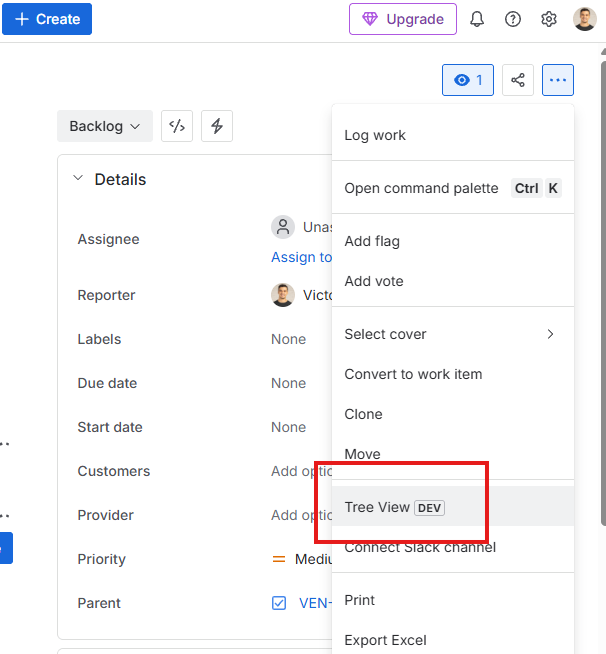
- Explore the Tree: The tree will open in a modal showing the full hierarchy, with your work item highlighted. Switch between the Chart, Horizontal, Radial and List views using the tabs. Use the search box and the Filters, Display and Statistics toggles above the tree when you need them.
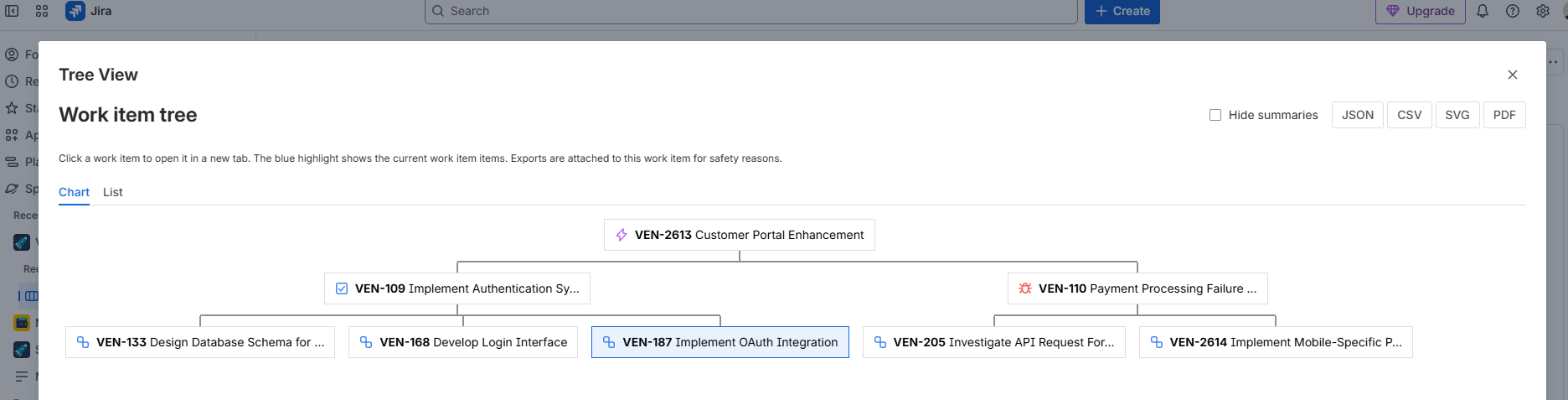
- Navigate: Click any work item tile to open it in a new browser tab. Hover over tiles to see full titles in tooltips.
- Export: Use the export buttons to save the tree as JSON, CSV, SVG (image), or PDF.
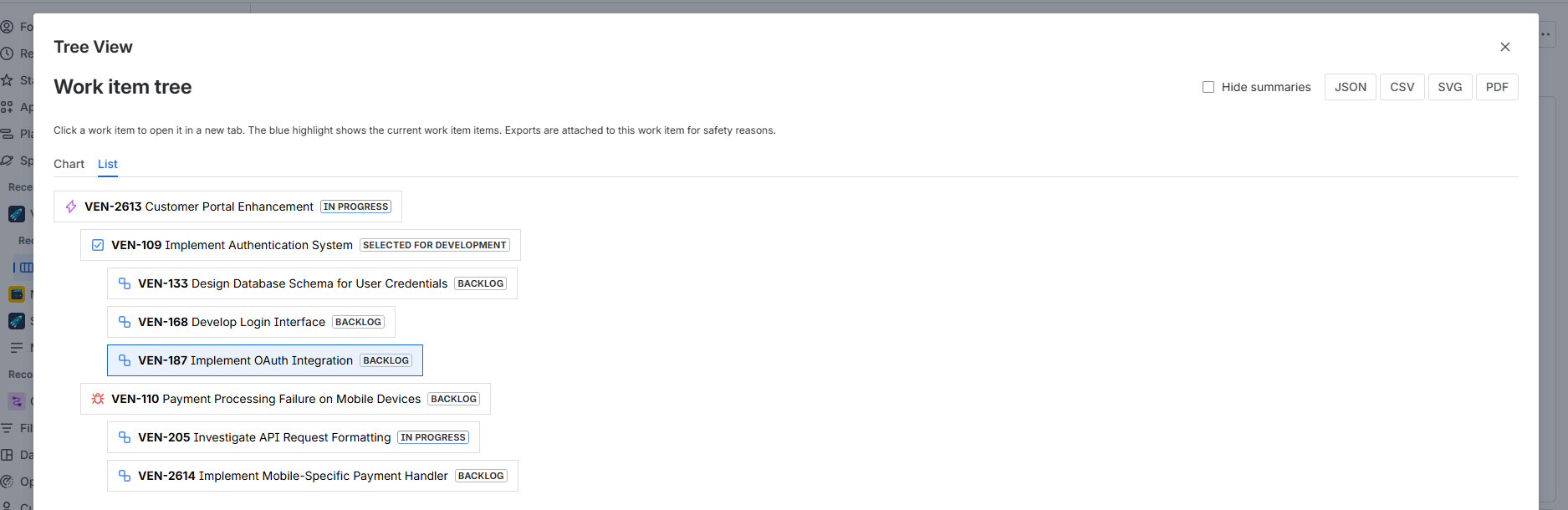
Note: The app respects your Jira permissions and only shows work items you have permission to see. The tree is capped at 10 levels / 500 work items for performance.
Deep Hierarchies: Folding and Levels
Tree View is tested on hierarchies of 5 to 12 levels, such as Theme > Objective > Initiative > Epic > Story > Sub-task. Two tools keep a deep tree readable:
- Fold a branch: click the − handle on the connector line of any item with children (after the tile in the List view). The folded item shows +N, the number of items it hides; click it to open the next level.
- Levels shown: open Display and pick how many levels to show (All, 1, 2, 3…). The path from the top of the hierarchy down to your work item always stays open, so you never lose your place.
- Unfold all appears next to the search box while anything is folded and brings the whole tree back.
The summary line under the search box shows how many levels the hierarchy has and how many items are folded.
Export Options
Save your hierarchy in multiple formats for documentation or sharing:
- JSON: Structured data format for programmatic processing.
- CSV: Tabular format with indentation representing hierarchy levels.
- SVG: Vector image of the tree that can be embedded in documents.
- PDF: Visual representation of the tree on a single page, following your current view (Chart, Horizontal, Radial or List).
Exports contain what you see: when a search, filter, folded branch or level limit is active, only the visible work items are exported, and the file says so.

For security purposes, all exports are attached to the current work item. Download them from the attachments section and delete if no longer needed. Filenames include timestamps and all files include an "Exported at … by …" header.
Troubleshooting & Limitations
- Why can't I see all work items in the tree?
- The tree is capped at 10 levels (counting the top item) and 500 work items for performance reasons. When a limit is reached, a warning says which one. The path from the top of the hierarchy down to your work item is always included. Also check that no branch is folded and that Display shows All levels: Unfold all resets both.
- Why are the export buttons disabled?
- Export requires attachment permissions on the current work item. If you lack these permissions, the export buttons will be disabled with a warning.
- Why do work type icons appear as colored chips in exports?
- The actual Jira icons require authentication and would appear broken when shared or viewed offline. Exports use colored chips with initials instead.
- Can I edit the tree structure?
- Tree View for Jira is a read-only visualization tool. To make changes to the hierarchy, use Jira's standard issue linking and parent/child relationship features.