Overview
Attachment Text Editor for Jira lets you open and edit text-based attachments (CSV, logs, config files, source code, and more) directly on the issue view. Say goodbye to the tedious process of downloading a file, editing it locally, and re-uploading it. Quickly review and update files in context without ever leaving Jira.
Key Features
In-Browser Editing
Open text files in a full-screen, IDE-like editor directly inside your Jira issue.
Syntax Highlighting
Automatic syntax colorization for over 20 popular programming languages and config file formats.
Create & Duplicate
Create brand new files from scratch, or use "Save as Copy" to safely edit without destroying the original.
Enterprise Security
Built strictly on Atlassian Forge. Eligible for the Runs on Atlassian program with zero external data egress.
How It Works
Unlike complex automation apps, there is zero backend configuration required. The app works straight out of the box, but you do need to enable the panel on your view first.
- Navigate to any Jira issue.
- Enable the App Panel: Click on the Gear icon next to the work item's Summary and enable Attachment Text Editor from the list as shown below.
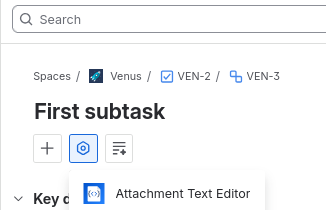
- Pin to Issue View (Optional but recommended): When the app is shown between the file list and comment section, you can click on the three dots (...) on the right side of the panel and enable it to show for all work items.
- The Editable Files panel will now automatically detect any text-based attachments on the issue as shown below.
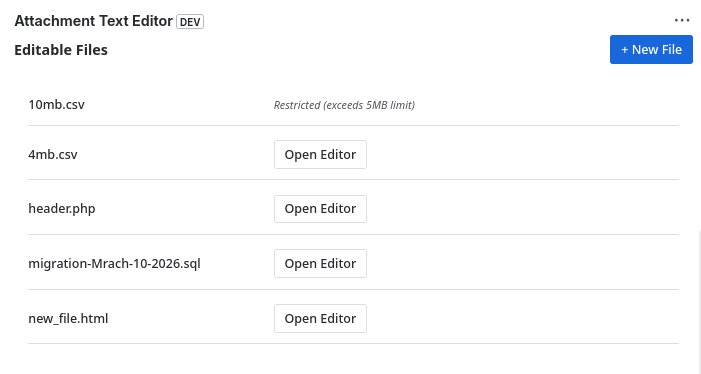
- Click Open Editor next to a file to start editing, or click + New File to draft a new attachment.
- When finished, click Save & Overwrite to update the file, or Save as Copy to preserve the original.
Note: The app dynamically respects your Jira project permissions. If you do not have permission to delete an attachment, the app will prevent you from overwriting it.
Supported Languages
The editor automatically detects the file extension and applies the correct syntax highlighting. You can also manually select a language when creating a new file. Supported formats include:
- Source Code: C, C++, C#, Go, Java, JavaScript, PHP, Python, Ruby, Rust, TypeScript
- Web & Scripts: HTML, CSS, Shell / Bash, PowerShell, SQL
- Data & Configs: JSON, XML, YAML, Markdown, CSV, Plain Text (.txt, .log, .env, .ini)
Troubleshooting & Limitations
- Why does a file say "Restricted (exceeds 5MB limit)"?
- To ensure Jira remains fast and your browser doesn't crash, the in-browser editor is restricted to files 5MB or smaller. Larger files must be downloaded and edited locally.
- Why does a file say "Read-only (missing permissions)"?
- To overwrite a file, Jira requires you to have the Delete Own Attachments (if you uploaded it) or Delete All Attachments permission. If you lack these, you can still open the file to read it, but you cannot save changes.
- What happens if two people edit a file at the same time?
- The app does not support real-time concurrent editing (like Google Docs). If two users open the same file simultaneously, the last save will overwrite previous versions. Please coordinate with your team.