Overview
Special Messages is a powerful Atlassian Forge app designed to enhance your Jira experience by providing contextual guidance to your team members. This app serves as an intelligent assistant that helps users navigate complex processes by displaying targeted messages directly on the screen view based on JQL rules.
Key Features
Dynamic Display
Messages appear automatically when a Jira issue meets your specified JQL criteria.
Visual Styles
Choose from 5 distinct styles (Info, Warning, Error, Success, Discovery) to grab attention.
Rich Text
Use markdown syntax to format text, lists, tables, and code.
Context Aware
Target specific projects or spaces to ensure relevance across your organization.
Multiple Display Modes
Choose how messages are shown: either as an embedded panel in the issue view (‘📋 Issue Panel’), or as a pop-up toast (‘🚩 Flag Notification’).
How It Works
For the admin view, go to Marketplace apps by clicking on the Gear icon at the top right section of your Jira. You'll see the admin tab of the app called "Workflow Assistant" in your app list.
After configuring your messages, you do need to enable the panel on your view.
- Navigate to any Jira issue.
- Enable the App Panel: Click on the Gear icon next to the work item's Summary and enable Workflow Assistant from the list as shown below.
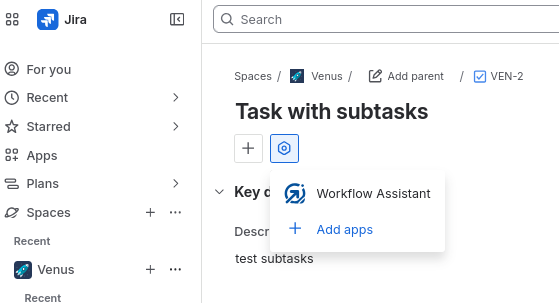
- Pin to Issue View (Optional but recommended): When the app is shown between the file list and comment section, you can click on the three dots (...) on the right side of the panel and enable it to show for all work items.
The app leverages Jira’s section message component and native flag notifications. You define a rule consisting of:
- JQL query
- Title
- Description (written with Markdown)
- Visual style
- Display mode: either Issue Panel or Flag Notification
When an issue meets the JQL criteria:
- If Issue Panel is selected, the message appears embedded close to the comment section of the issue view, with Markdown support.
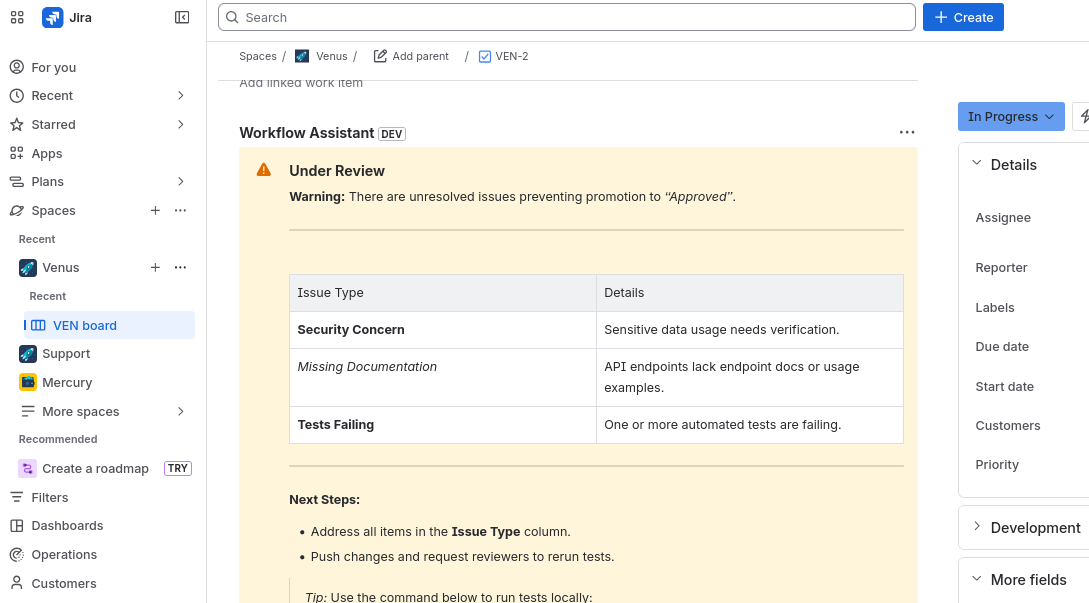
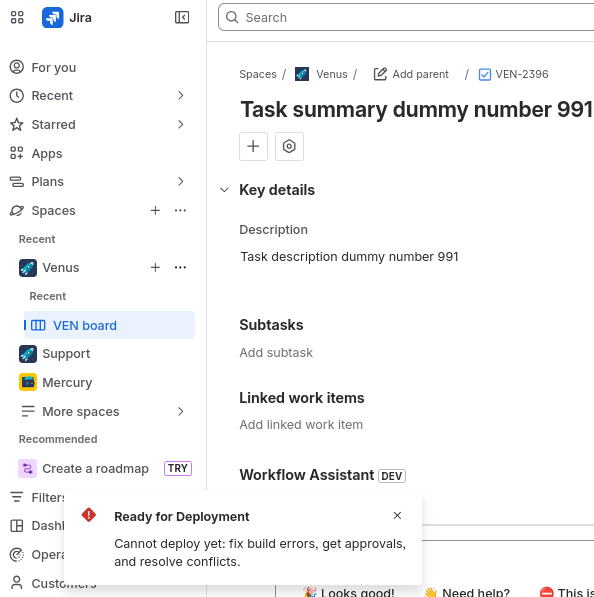
- If Flag Notification is selected, a pop-up toast appears in the bottom left with the title and a stripped version of the description (plain text, no Markdown formatting).
Getting Started
To configure Special Messages, navigate to the app configuration in your Jira administration settings.
- Go to Apps > Manage your apps.
- Find Special Messages and click on configuration.
- Click Create New Rule.
- Fill in the form fields:
- JQL:
status = "In Progress" AND assignee is empty - Title: Action Required
- Description: Please assign this ticket.
- Style: Warning
- Spaces: Select the projects to apply this to.
- JQL:
- Click Test JQL to make sure your query is valid.
- Click Save.
Message Types
Special Messages offers five distinct styles to help you prioritize and categorize information:
ℹ️ Information
Best for general guidance, helpful tips, or process explanations.
⚠️ Warning
Used for important reminders that need attention but do not block work completely (e.g., "Don't forget to attach logs").
❌ Error
Critical issues that require immediate action. Often used when a workflow transition is blocked or data is invalid.
✅ Success
Confirmation messages for completed tasks or successful validations (e.g., "Ready for Deployment").
📄 Discovery (Issue Panel-only)
Educational content to help users learn new processes or understand terminology.
This type is only available for Issue Panel display.
Markdown Examples
Here are some practical examples you can copy and adapt for your own workflows.
Example 1: Missing Required Fields (Warning)
**⚠️ Action Required**
You cannot transition this issue to **In Progress** without assigning it.
Please ensure you have:
- [ ] Assigned a **Assignee**
- [ ] Set the **Priority**
- [ ] Filled out the **Story Points** field
Example 2: Definition of Done Table (Information)
**ℹ️ Definition of Done for QA**
Check the following criteria before passing this item:
| Component | Status | Notes |
| :--- | :--- | :--- |
| Frontend | ✅ Ready | Visual regression passed |
| Backend | ✅ Ready | API endpoints documented |
| Mobile | ⏳ Pending | Waiting for verification |

_Contact the Tech Lead if any component is blocked._
Example 3: Blocked Workflow (Error)
**❌ Transition Blocked**
You cannot resolve this issue because **2 sub-tasks** are still open.
Please verify the status of the following items:
- [ ] Update database schema (DEV-102)
- [ ] Migrate legacy data (DEV-105)

All sub-items must be closed before proceeding.
Example 4: Educational Guide (Discovery)
**📄 Process Guide: Triage Phase**

**What is Triage?**
This phase ensures every ticket is categorized correctly before engineering starts work.

**Why am I seeing this?**
Your current status indicates the ticket is awaiting triage. Please set:
1.  **Team:** (Frontend, Backend, DevOps)
2.  **Estimate:** (T-shirt size: S, M, L, XL)

[Click here for the full internal documentation](https://your-company-docs.com/triage)
Troubleshooting
- My message isn't showing up?
- Verify your JQL query is valid and returns results in the issue navigator. Ensure you have selected the correct Space/Project in the configuration form.
- Markdown isn't rendering?
- Ensure you are using standard Markdown syntax. Check for unclosed brackets or backticks that might break the formatting.
- Can I use HTML?
- No, for security reasons, the app supports standard Markdown syntax only.